Tech Boot camps, Skills Training, and Continuing Education for IT and Business Professionals
TECH BOOTCAMPS, SKILLS TRAINING AND CONTINUING EDUCATION FOR IT
AND BUSINESS PROFESSIONALS
Trending IT Certifications



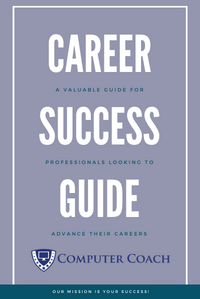
Download OUr Free Career Success PDF Guide
Our career success guide is a valuable resource for IT professionals looking to advance their careers and achieve success in their industry or for individuals considering a career pivot into IT.
No Charge · No Spam · Unsubscribe Anytime
Our comprehensive approach to your success
Not all schools are alike. You need to find a school that works for you,. Below are just a few of the things that set Computer Coach apart.
Hands-On Training
Experience the power of hands-on learning. Our classes allow you to actively practice and apply the skills you are learning, leading to a deeper understanding and stronger retention.
Real-World Projects
Our classes gives you the opportunity to work on projects and exercises that simulate real-life situations, so you can hit the ground running in your personal or professional endeavors.
Flexible Learning Options
Our flexible learning options are designed to accommodate the needs of adult learners, Regardless if you are interested in remote, live online, in person, or self-paced our robost solutions are designed for adults.
Experienced Instructors
Our team of trainers have years of experience in their fields and are dedicated to helping you succeed. We provide personalized attention and guidance as you work through your desired programs.
Apprenticeships
Get a head start in the fast-growing field of technology. Our apprenticeship programs allows you to gain experience while working with local companies and receiving structured training.
Job Coaching Program
Get personalized support. Our team is here to guide you through the job search process, offering resume and cover letter writing tips, interview preparation, networking events, and more.
Hear from our students & Partners!
From experienced professionals looking to upskill to career changers seeking a new path, our students come from a variety of backgrounds and industries. Read their stories to see how our training has helped them succeed in their personal and professional goals.

My life was changed for the better. The staff takes an interest in your professional development with a variety of certification courses, and continues to provide valuable advice on succeeding in your job search.
- Celena -
Project Manager

I recommend Computer Coach to anyone looking for not only career skills but also better life skills. To say that I have just 'gained skills' is trite: I have gained valuable tools that will last a lifetime.
- Joel -
DevOps Engineer

I’ve been working with their students for about 5yrs and I am always amazed by the quality candidates that graduate from Computer Coach. I would give it 10 stars if that were possible.
- Ashley -
Employer Partner
Computer Coach Popular Resources
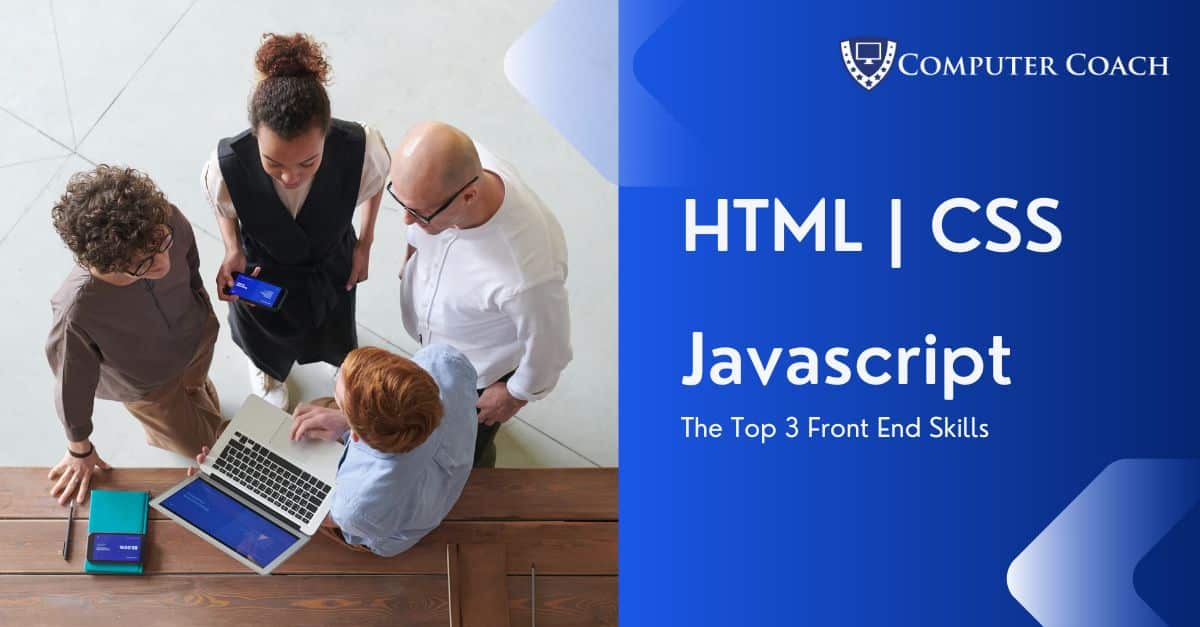
Front-end development is a necessary element for every business that manages webpages and applications using coding languages.
Computer Coach
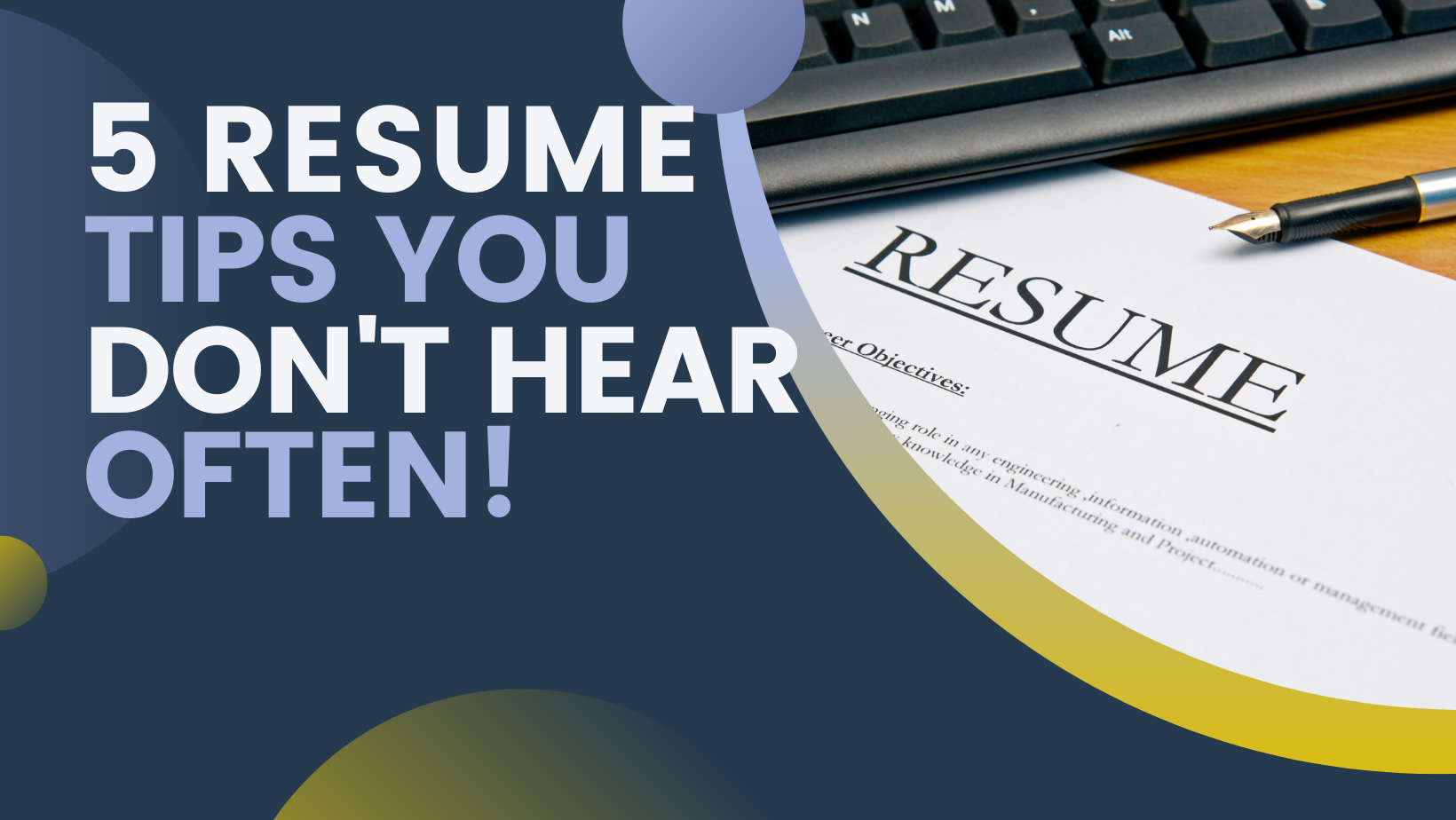
Let's face it, there is a lot of mystery that goes into writing resumes. Do I still need an address? Do I customize for each job? and more... These 5 tips will help you get well on your way to having a resume that stands out.
Computer Coach

Beginners Guide to an Entry-Level Help Desk Career
In this era of digital evolution, and now work from home, it is hard to come across an organization that does not use computers to do their routine tasks. -- Read More --
Computer coach
Suzanne Ricci
we can Help You Succeed.
Whether you're looking to switch careers or take the next step in your current tech career, our career strategists can help you explore a wide range of possibilities.
Step 1. Strategy
Uncover new career possibilities.
Step 2. training
Skills training drives career growth.
Step 3. Coaching
Personalized coaching helps achieve goals.
corporate headquarters
5005 N. Hesperides Street
Tampa, Florida 33614
(813) 947-0552